How To
- Installing the Application
- Starting the Application
- Operational Usage
- Voice Commands During a Checklist
- Checklist Files
-
Voice Commands for Aircraft Systems
- Commands overview
- Current flap position
- Current ground speed
- Current elevation
- Ground power on
- Ground power off
- Fuel pump 1 left
- Fuel pump 2 left
- Fuel pump 1 center
- Fuel pump 2 center
- Fuel pump 1 right
- Fuel pump 2 right
- APU on
- Start APU
- APU off
- APU generator 1 on
- APU generator 1 off
- APU generator 2 on
- APU generator 2 off
- Flap position 0
- Flap position 1
- Flap position 2
- Flap position 5
- Flap position 10
- Flap position 15
- Flap position 25
- Flap position 30
- Flap position 40
- Battery on
- Battery off
- Battery guard close
- Battery and guard off
- Emergency exit lights on
- Emergency exit lights off
- Emergency exit lights guard
- Engine one to off
- Engine one to ground
- Engine one to continuous
- Engine one to flight
- Engine two to off
- Engine two to ground
- Engine two to continuous
- Engine two to flight
Installing the Application
Installation is straightforward and does not require manual configuration.
- Verify System Requirements
- Download the provided MSI installer
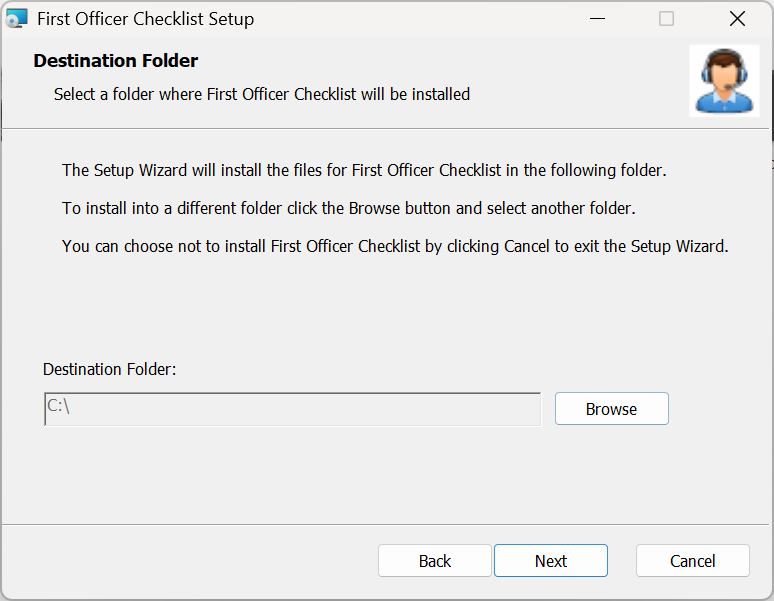
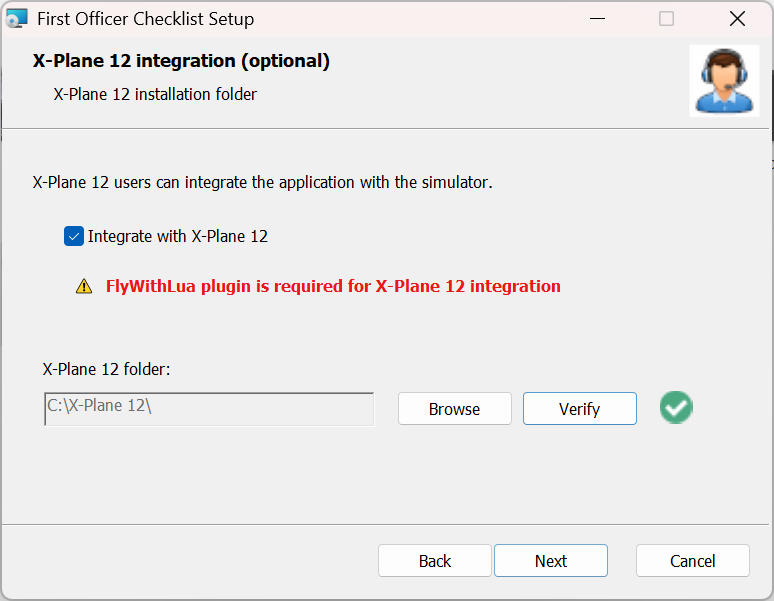
- Run the installer and follow the setup wizard
- A Desktop shortcut will be created automatically
No additional installation steps are required for basic operation.
Starting the Application
The application can be launched in two ways:
- Using the Desktop shortcut
- By double-clicking
FirstOfficerChecklist.exefrom the installation directory
If the machine is not authorized, the following message will appear in the console:
[ERROR] Machine ID not authorized
If you attempt to give a command while the application is locked, you will see:
[ERROR] Application is locked on this machine
To request early access:
- Open the file
Machine ID.txtin the installation folder - Copy your Machine ID
- Submit it using the Early Access form to activate the application
Note: The application requires .NET 8.0. Without it, the Machine ID.txt file will not be generated. Download .NET 8.0 Runtime as specified in system requirements
Disclaimer: the Machine ID is a non-personal, technical identifier that does not allow the identification of the user. Read Technical Data Collection Notice. Additionally read our Security Notice
Operational Usage
Application start
As soon as the application is initialized it is immediately ready to receive voice commands.
Note for X-Plane 12 users: for in-game conversation display the application must be started before simulator
Starting a Checklist
To start a checklist, use the voice command:
Read 'power and safety' checklistWhere “power and safety” corresponds to the checklist file:
power and safety.txtNote: filenames must be lowercase and in English.
Checklist files must be placed inside a subfolder within the main checklist\ folder that identifies the aircraft. For example:
checklist\Boeing 737-800X- For X-Plane 12, the subfolder name must match exactly the aircraft name as it appears in the log.
- For other simulators, you can choose any name you like.
Voice Commands During a Checklist
The checklist progresses through a natural call-and-response flow.
Confirming a Checklist Item
The pilot can confirm an item using one of the following voice commands:
CheckSet
The virtual First Officer will acknowledge the response and move to the next item.
Stopping a Checklist
To stop the currently running checklist:
Stop checklistContinuing the Last Checklist
To resume the last unfinished checklist:
Continue with last checklistRepeating Last Checklist Line
To repeat last checklist line:
Repeat last checklist lineRestarting a Checklist
To restart a checklist from the beginning:
Read 'power and safety' checklistChecklist Files
- Checklist files are plain text files
- Filenames must be lowercase
- There is no limit to the number of checklists
- Checklist text must be in English, as Neural Voices are currently English-only and aviation terminology is standardized in English
- You can skip a checklist line by starting it with a
#character - The system must be separated from the verb with a dash
-, for example:
BATTERY GUARD - CLOSEThis approach allows full customization without modifying the application itself.
Note
Currently, First Officer Checklist is available in English only.English is the internationally recognized language of aviation, as established by the ICAO (International Civil Aviation Organization). All standard cockpit communication, procedures, and voice interactions are conducted in English, which is why the application is designed around English commands.
Voice Commands for Aircraft Systems
Commands overview
Experience true hands-free flying: commands like "Turn ground power on" are currently in active development for X-Plane 12, letting you interact with your aircraft naturally using only your voice. Future updates will expand the range of controllable systems, making your simulator experience even more immersive.
Note
The voice commands listed below have been tested and validated with the Boeing 737-800X by Zibomod and Boeing 737-800NG by LevelUp V2.
Support for additional aircraft may be added in future updates, depending on user interest and feedback during the Early Access phase.
Compatibility with other aircraft currently depends on their system architecture and implementation.
Current flap position
Reports the current flap position:
tell me flap positionCurrent ground speed
Reports the aircraft's current ground speed:
tell me ground speedCurrent elevation
Reports the aircraft's current elevation:
tell me elevationGround power on
Switches on the ground power:
turn ground power onGround power off
Switches off the ground power:
turn ground power offFuel pump 1 left
Toggles fuel pump 1 left:
switch fuel pump one leftFuel pump 2 left
Toggles fuel pump 2 left:
switch fuel pump two leftFuel pump 1 center
Toggles fuel pump 1 center:
switch fuel pump one centerFuel pump 2 center
Toggles fuel pump 2 center:
switch fuel pump two centerFuel pump 1 right
Toggles fuel pump 1 right:
switch fuel pump one rightFuel pump 2 right
Toggles fuel pump 2 right:
switch fuel pump two rightAPU on
Turns the APU on:
turn apu onStart APU
Starts the APU:
start apuAPU off
Turns the APU off:
turn apu offAPU generator 1 on
Activates APU generator 1:
turn apu generator one onAPU generator 1 off
Deactivates APU generator 1:
turn apu generator one offAPU generator 2 on
Activates APU generator 2:
turn apu generator two onAPU generator 2 off
Deactivates APU generator 2:
turn apu generator two offFlap position 0
Sets flap position to 0:
set flap to zeroFlap position 1
Sets flap position to 1:
set flap to oneFlap position 2
Sets flap position to 2:
set flap to twoFlap position 5
Sets flap position to 5:
set flap to fiveFlap position 10
Sets flap position to 10:
set flap to one zeroFlap position 15
Sets flap position to 15:
set flap to one fiveFlap position 25
Sets flap position to 25:
set flap to two fiveFlap position 30
Sets flap position to 30:
set flap to three zeroFlap position 40
Sets flap position to 40:
set flap to four zeroBattery on
Turns the battery on:
turn battery onBattery off
Turns the battery off:
turn battery offBattery guard close
Closes the battery guard (turns also the battery on):
close battery guardBattery and guard off
Turns the battery off and opens the guard:
turn battery and guard offEmergency exit lights on
Turns on emergency exit lights:
turn emergency exit lights onEmergency exit lights off
Turns off emergency exit lights:
turn emergency exit lights offEmergency exit lights guard
Toggles emergency exit lights guard:
switch emergency exit lights guardEngine one to off
Set engine one knob to off position
set engine one to offEngine one to ground
Set engine one knob to ground position
set engine one to groundEngine one to continuous
Set engine one knob to continuous position
set engine one to continuousEngine one to flight
Set engine one knob to flight position
set engine one to flightEngine two to off
Set engine two knob to off position
set engine two to offEngine two to ground
Set engine two knob to ground position
set engine two to groundEngine two to continuous
Set engine two knob to continuous position
set engine two to continuousEngine two to flight
Set engine two knob to flight position
set engine two to flightSupport for Microsoft Flight Simulator (MSFS) is not planned at the moment, but may be considered in the future depending on community interest and early access support.
Configuration File: settings.ini
The application uses a configuration file named:
settings.inilocated in the main application directory. This file is read at startup and allows customization of some application parameters.
Available Settings
NEURAL_VOICE_GENDER
Selects the First Officer gender.
Available values:
malefemale
NEURAL_VOICE_GENDER=femaleXPLANE_DIRECTORY (OPTIONAL, X-PLANE 12)
Defines the installation path of X-Plane 12 needed for in-game conversation display.
XPLANE_DIRECTORY=C:\X-Plane 12\SHOW_CONVERSATION_IN_GAME (OPTIONAL, X-PLANE 12)
Enables or disables the in-game conversation display.
Available values:
yesno
SHOW_CONVERSATION_IN_GAME=noThis feature requires the FlyWithLua plugin to be installed and properly configured.
IN_GAME_FONT (OPTIONAL, X-PLANE 12)
Defines the font (and size) used for the in-game text display.
Available values:
XPlaneHelvetica_10Helvetica_12Helvetica_18Times_Roman_10Times_Roman_24
IN_GAME_FONT=XPlaneWEB_SERVER_PORT (OPTIONAL, X-PLANE 12)
Defines the X-Plane 12 web server listening port.
Valid values:
Chose a free port between 1 and 65535
WEB_SERVER_PORT=8086If you want to change the default port value you need to launch the simulator with --web_server_port= flag. Example:
./X-Plane --web_server_port=8088